Triggered Action Type - Send Cheetah Digital Email
Loyalty integrates closely with Cheetah Digital, which allows you to use Member actions, such as enrolling in a loyalty program or completing a purchase, to automatically trigger the deployment of an Event-triggered Email Campaign within Cheetah Digital. The Send Cheetah Digital Email Triggered Action type allows you to configure this integration by identifying which Member action or behavior should triggered which Event-triggered Campaign in Cheetah Digital. .
For more information on this integration between the two platforms, see Integration Guide - Event-triggered Campaigns.
This Action has the following parameters:
-
Connection Profile: Select a Cheetah Digital Connection Profile.
-
Target Table: Enter the name of the Campaign's source table in Cheetah Digital.
-
Campaign ID: Enter the "Running Campaign ID" of the launched Cheetah Digital Campaign.
-
Content Source: Optionally, select one or more Content Sources.
Note: Content Sources are an optional feature designed to accommodate more advanced use cases, such as sending a list of multiple Offers to Cheetah Digital for use in a Looping Block.
Personalization Details
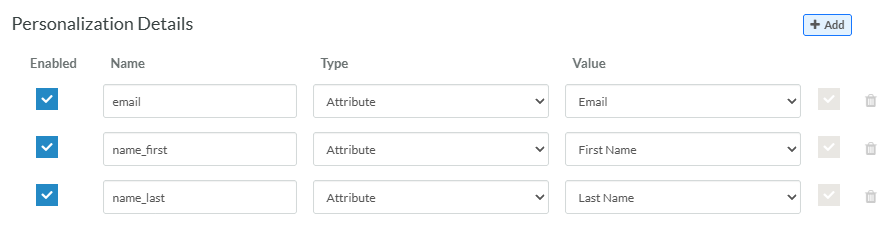
You may need to add custom parameters within the Personalization Details section if, for example, you're using values from Loyalty to populate Personalization Fields within the email message content. To use personalization, you must know the name of the desired field as it appears in the Merge Symbol in the Cheetah Digital content. You must use the internal name of the field, and not its display name. For example, let's say you have a message that uses first name and last name values to personalize the message. You would need to add those Merge Symbols to the email content in Cheetah Digital, like this:
-
Hello, {(name_first)} {(name_last)}
The values in these Merge Symbols must reference existing fields in the Campaign's source table in Cheetah Digital. Otherwise, the Cheetah Digital application will display an error message when you try to save or launch the Campaign.
To define a personalization field, click Add within the Personalization Details section, then enter the following information.
-
Check Enabled.
-
Within the Name field, enter the value as used in the Merge Symbols (without the brackets).
-
From the Type drop-down menu, select one of the following:
-
Attribute: Use a Loyalty Member Attribute. From the Value drop-down menu, select the desired Member Attribute. The value of the selected Member Attribute will be passed in the API call to Cheetah Digital.
-
Metric: Use a Loyalty Member Metric. From the Value drop-down menu, select the desired Member Metric. The current balance of the selected Member Metric will be passed in the API call to Cheetah Digital.
-
Content Token: Use a Loyalty Content Token. From the Value drop-down menu, select the desired Content Token. The value of the selected Content Token will be passed in the API call to Cheetah Digital.
-
Advanced: Enter an expression in the Value field to derive a value.
-
Repeat the above steps as needed to define additional personalization fields.